How to Choose a USB Hub for Laptop and PC: Port Types, Data Transfer Speed, and Compatibility in 2026
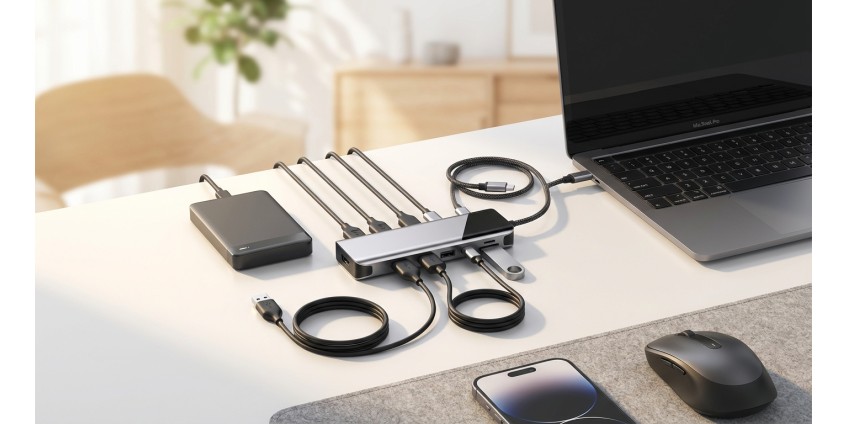
Modern laptops and computers often have a limited number of ports, which creates inconvenience when connecting peripherals. A USB hub is becoming an indispensable solution for those who work with many gadgets at the same time - from external drives to printers, keyboards and mice. In 2026, choosing the right hub requires understanding the technical specifications, port types and compatibility features with different devices.
Why a USB hub is a necessary accessory
Most modern laptops, especially ultrabooks, only have 2-3 USB ports, and some models are limited to USB Type-C only. This creates serious problems for users who need to connect multiple devices at once. A USB hub solves this problem by expanding the capabilities of your computer without having to constantly switch cables.
In addition to increasing the number of ports, a quality hub provides stable data transfer, supports fast charging of compatible devices, and can serve as a central hub for your entire workstation. This is especially important for those who work with computers and laptops in a home office or need to quickly connect various peripherals.
Types of USB ports and their features
The first thing to look for when choosing a USB hub is the types of ports it supports. In 2026, hubs with different port combinations are available on the market, each with its own advantages.
USB-A: classic standard
USB-A remains the most common port type, supporting the majority of peripherals, from mice and keyboards to external storage devices. Hubs with USB-A ports provide maximum compatibility with older devices and are the best choice for those who use a large number of traditional peripherals.
USB Type-C: the future is here
USB Type-C is a modern standard that is gradually replacing USB-A. This port has a reversible design (can be inserted either way), supports higher data transfer speeds, and can provide more powerful charging. Many modern laptops have only Type-C ports, so a hub that supports this standard is becoming a necessity.
Combined solutions
The most versatile are hubs that combine USB-A and USB Type-C ports. Such models allow you to connect both old and new devices, providing maximum flexibility in use.
Data transfer speed: USB 2.0, 3.0, 3.1 and 3.2
Data transfer speed is a critical parameter, especially if you regularly work with large files or use external drives for backup.
USB 2.0 provides speeds of up to 480 Mbps. This is enough to connect a keyboard, mouse, or printer, but for working with large files, this standard is already outdated.
USB 3.0 (USB 3.1 Gen 1) offers speeds of up to 5Gbps—10 times faster than USB 2.0. It's the best choice for most users who work with external hard drives and need to copy files quickly.
USB 3.1 Gen 2 doubles the speed to 10Gbps, making it ideal for professional work with high-definition video or large databases.
USB 3.2 and USB4 are the latest standards, offering speeds of up to 20-40 Gbps. These technologies are less common yet, but if you're investing in a hub for the long term, it's worth considering models that support these standards.
Power: passive and active USB hubs
USB hubs are divided into two types based on the power supply method: passive and active.
Passive hubs
Passive hubs are powered solely by the computer port they are connected to. They are compact, portable, and do not require additional cables. However, their power is limited, so they are only suitable for connecting low-power devices - keyboards, mice, flash drives.
Active hubs
Active hubs have their own power supply, allowing you to connect power-hungry devices — external hard drives, printers, smartphone chargers. If you plan to use the hub as a central station for many devices, an active model is a better choice.
Additional features of modern USB hubs
Modern USB hubs often offer additional capabilities that go beyond simply expanding ports.
Video transmission support
Some hubs with USB Type-C ports support video transmission via HDMI or DisplayPort. This allows you to connect external monitors directly through the hub, which is especially convenient for owners of laptops without a separate video output.
Built-in card readers
If you work with photography or video, a hub with a built-in card reader for SD and microSD cards will be a useful addition to your workspace.
Fast charging
Many modern hubs support fast charging technologies such as Power Delivery (PD) or Quick Charge. This allows you to charge smartphones, tablets, and even some laptops directly through the hub.
Compatibility and connectivity
When choosing a USB hub, it's important to make sure it's compatible with your computer and operating system. Most hubs are plug-and-play and don't require drivers to be installed on Windows, macOS, or Linux. However, some models with advanced functionality (such as video streaming) may require additional software.
It is also worth paying attention to the length of the hub cable. For stationary use on a desktop, a model with a short cable (15-30 cm) is suitable, while for greater flexibility in placement, it is better to choose a hub with a cable length of 1-1.5 meters.
Case materials and design
The quality of the case materials affects not only the aesthetics, but also the durability and heat dissipation of the hub. Aluminum cases provide better heat transfer and look more premium, while plastic models are usually lighter and more affordable.
Some hubs have port activity indicators, allowing you to quickly see which ports are currently in use. Compact models are convenient for travel, while larger stationary hubs often have a tilted design for easier access to the ports.
What else to pay attention to
There are a few additional things to consider before buying a USB hub. First, check the maximum number of devices you can connect at once — some hubs may have limitations due to insufficient power. Second, look for surge and short-circuit protection — these features will protect your devices from damage.
If you often work with USB hubs and other computer accessories, you should consider models from trusted manufacturers that provide a warranty and technical support.
Practical tips for use
To get the most out of your USB hub, follow these simple rules: Connect your most power-hungry devices to ports closest to the power source. Avoid connecting multiple devices that are actively using the data channel at the same time, as this can slow down the speed.
Check for firmware updates for feature-rich hubs regularly—manufacturers often release updates that improve compatibility and performance. And remember, even the best hub won't be able to exceed the bandwidth limits of the port it's connected to.
Result
Choosing a USB hub in 2026 depends on your specific needs and usage scenarios. For basic port expansion, a compact passive hub with USB-A 3.0 ports is suitable. If you work with a large number of peripherals or power-intensive devices, it is better to choose an active hub with its own power supply. For owners of modern laptops with Type-C ports, a multifunctional hub that supports video transmission, fast charging and has a combination of different types of ports will be optimal.
Pay attention to data transfer speed, quality of materials, presence of surge protection and compatibility with your devices. The correctly chosen USB hub will significantly increase your work productivity and make using your computer more comfortable and convenient.
Products related to this post
₴299 грн. ₴420 грн.
Add to Cart