How to Build a Compact PC (Mini-ITX / Micro-ATX) for Home and Office: A Detailed Buyer's Guide
The Era of Compact Technologies: Why Large System Units Are a Thing of the Past
Greetings, friends! The GadgetGuys online store blog is with you again. Today we will talk about a topic that is becoming more relevant every year. A decade ago, a powerful computer was necessarily associated with a huge, heavy metal box that hummed under the table, collected dust, and took up a lot of useful space. However, technological progress does not stand still. Modern manufacturing processes allow the creation of incredibly productive processors and drives that emit minimal heat and take up minimal space. That is why building a compact PC for home or office is no longer a compromise between size and performance, but the smartest choice for most users.
Compact systems fit perfectly into a modern minimalist interior, are easy to move, consume less electricity, and most importantly, are capable of performing 99% of everyday tasks: from working with documents and surfing the internet to watching 4K videos, editing photos, and even basic gaming. In this detailed guide, we will figure out how to properly choose PC Components, what the differences are between popular compact form factors, and how to build the system of your dreams yourself.
The Battle of Formats: Mini-ITX vs. Micro-ATX
Before you start buying parts, you need to decide on the base size of your future system. In the world of compact computers, two main motherboard standards rule the roost: Mini-ITX and Micro-ATX. Your choice will determine the size of the case, upgrade options, and the overall budget of the build.
Features of Micro-ATX (mATX)
Micro-ATX is perhaps the golden mean for a home and office computer. The size of such a board is 244 x 244 mm (or less). This is a slightly shortened version of the standard ATX board. Its main advantages are:
- Affordability: This is the most popular and often the cheapest board format on the market.
- Expansion slots: Usually, mATX boards have up to 4 PCIe slots, which allows you to install a video card, sound card, or an additional network adapter.
- RAM: Most of these boards are equipped with 4 RAM slots, making future upgrades very easy.
- Versatility: They fit into both medium (Mini-Tower) and very compact Slim cases.
Features of Mini-ITX
Mini-ITX is the choice for those who want maximum compactness. The board size is only 170 x 170 mm. They allow you to create computers the size of a gaming console or even smaller. However, this format has its limitations:
- Minimum slots: Only one PCIe slot (usually used for a video card).
- Memory: Only 2 RAM slots. Therefore, the volume must be chosen with a margin right away (for example, 2 sticks of 16 GB).
- Price: Due to the dense layout of elements on the PCB, such boards often cost more than their mATX counterparts.
For a standard office or home multimedia PC, we strongly recommend paying attention to Micro-ATX. It is cheaper, more practical, and does not cause headaches during assembly.
Choosing Components: What to Look For?
Building in a compact case requires careful planning. You can't just buy any parts and hope they fit. Let's go through the key components.
1. Processor (CPU) and Cooling
For home and office, you don't need flagship processors with a heat dissipation (TDP) of over 100W. Pay attention to modern processors with integrated graphics (APU) from AMD (for example, the Ryzen G series) or Intel Core i3/i5 processors with a built-in video core (UHD or Iris Xe). Integrated graphics today are so powerful that they easily handle 4K monitors, hardware acceleration in browsers, and even light gaming. This will allow you to completely abandon a discrete video card, freeing up a lot of space in the case.
As for cooling, choose low-profile coolers. Before buying, be sure to check the specifications of your case — it always indicates the maximum height of the CPU cooler (for example, up to 120 mm or up to 65 mm for ultra-thin solutions).
2. Motherboard
As we have already determined, we are looking for Micro-ATX or Mini-ITX Motherboards. Pay attention to the presence of the ports you need: HDMI or DisplayPort for connecting a monitor, a sufficient number of USB ports on the rear panel, as well as the presence of a connector for connecting USB Type-C on the front panel of the case (if your case supports it).
3. Drives and Memory
Forget about old 3.5-inch hard drives (HDD). For a compact build, the only right choice is M.2 NVMe SSDs. They look like a small plate that is inserted directly into the motherboard. They do not require any power or data cables, which is ideal for a small case where every centimeter of space is worth its weight in gold.
The Case — The Heart of Your Compact Build
Choosing a case is the most important stage when creating a compact PC. Not only the appearance depends on it, but also what components you can install, how they will be cooled, and how quietly the system will work. We recommend choosing PC Cases that already have a built-in power supply. This ensures that the PSU fits perfectly in size and its cables are the right length.
A great example of an ideal solution for home and office is the Chieftec UNI BS-10B-300 mATX Case.

Why do we pay attention to this particular model? It combines everything you need to create a modern workstation:
- Slim FF form factor and mATX support: Despite its very thin profile (Micro-Tower case type), it supports standard Micro-ATX and Mini-ITX boards. You don't overpay for expensive ITX boards.
- Built-in 300W power supply: This is more than enough for any modern processor with integrated graphics (a Core i5-based system usually consumes no more than 100-120W at peak load). You don't need to look for specific SFX or TFX power supplies.
- Modern interfaces: The front panel features 2 USB 3.0 ports, 2 USB 2.0 ports, audio jacks, and most importantly — a modern USB Type-C and an SD card reader. For an office worker, photographer, or student, having a card reader and Type-C on the front panel is incredibly convenient.
- Cooling: The case comes with a quiet 80mm fan that provides basic hot air exhaust. The maximum CPU cooler height here is limited to 120 mm, which is quite enough for most boxed or low-profile cooling systems.
You can learn more about this product in our catalog: Chieftec UNI BS-10B-300 mATX Case, 300W PSU, SLIM FF, USB Type C, CardReader.
Step-by-Step Process of Building a Compact PC
Building in a small case is somewhat different from working with large "towers". The sequence of actions is important here, because if you install the motherboard too early, you may not have enough space to connect the power cables.
Step 1: Preparation Outside the Case
Never start the build inside a small case. Place the motherboard on its box. Install the processor in the socket, apply thermal paste (if it is not pre-applied to the cooler from the factory), and secure the CPU cooler. Next, install the RAM modules and screw in the M.2 SSD drive. You should end up with a ready-to-work "module".
Step 2: Case Preparation
Open the side panel of your case (for example, our Chieftec UNI). Remove all transport films. Be sure to install the metal motherboard port shield (I/O Shield) on the rear panel of the case — if you forget to do this now, you will have to disassemble the entire computer again. Move all cables from the power supply and front panel aside so they don't get in the way.
Step 3: Motherboard Installation and Connection
Carefully lower the motherboard with the installed cooler into the case, aligning the ports with the shield. Secure the board with screws. Now comes the most difficult stage — cable management. Compact cases don't have much space behind the back wall to hide wires. Try to route the cables along the edges of the case. Connect the main 24-pin power, the 4/8-pin CPU power, as well as the front panel cables (power button, USB Type-C, audio, card reader). Use plastic zip ties to bundle excess cables and secure them so they don't get into the fan blades.
Temperature Regime and Noise Level
The main enemy of compact computers is overheating. Since the volume of air inside is small, it heats up quickly. However, for office and home multimedia tasks, this rarely becomes a problem if you follow a few rules.
First, do not place such a computer in a blind desk niche. The case needs access to fresh air. Second, make sure the ventilation holes on the case are not blocked by books or other objects. A built-in 80mm exhaust fan (like in the Chieftec model) is usually quite enough to create proper airflow if you use an energy-efficient processor without a discrete video card. In the BIOS settings, you can adjust the fan curve: set them so that at CPU temperatures up to 50 degrees, the fans run at minimum speeds. This will make your PC practically silent when working with text or watching videos.
Practical Summary: Who is This Computer For?
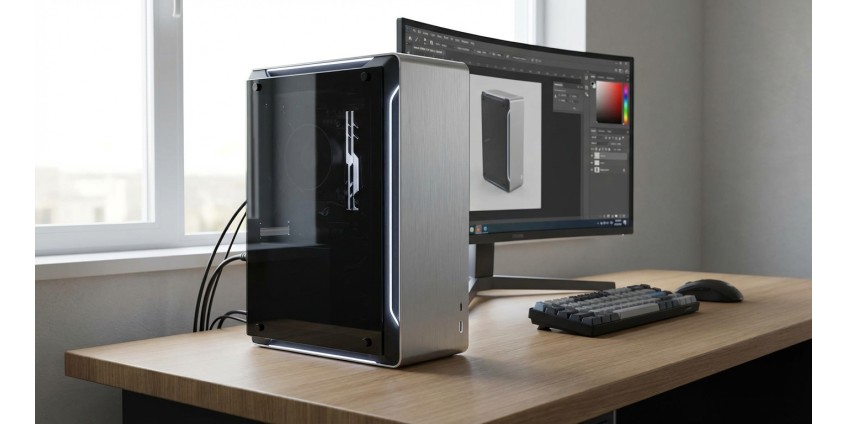
Building a compact Micro-ATX or Mini-ITX PC is an ideal solution for a modern home, apartment, or stylish office. You get the full performance of a desktop computer, but at the same time save workspace. Such a computer can be placed on the desk next to the monitor, hidden behind the TV in the living room, or easily transported to a new apartment.
Using well-thought-out solutions, such as slim cases with built-in power supplies and modern interfaces (Type-C, card readers), greatly simplifies the assembly process and makes daily use as comfortable as possible. If you don't plan to play "heavy" AAA games at maximum graphics settings, abandoning a large case and a discrete video card will save you significant funds, which are better invested in a high-quality monitor or a faster SSD.
We hope this guide helped you understand the nuances of compact builds. Choose quality components, don't be afraid to experiment, and create your perfect workspace with GadgetGuys!