How to Set Up a Home Wi-Fi Network in 2026: A Step-by-Step Guide for Beginners
Introduction: Why Proper Wi-Fi Setup Matters
In 2026, stable and fast internet is not a luxury but a necessity. The quality of your Wi-Fi network determines the comfort of remote work, online learning, video streaming, and gaming. Many users face problems: weak signal in distant rooms, constant connection drops, slow download speeds. The good news is that most of these issues can be solved with proper router configuration.
In this article, we'll cover in detail all the stages of creating a home Wi-Fi network: from unboxing the router to fine-tuning settings for maximum performance. Even if you've never configured network equipment before, this guide will help you create a reliable home network.
Step 1: Choosing the Right Router
Before starting the setup, it's important to choose a router that meets your needs. In 2026, you should pay attention to several key characteristics:
- Wi-Fi Standard: modern models support Wi-Fi 5 (AC) or Wi-Fi 6 (AX), which provide high speed and stability
- Frequency Bands: dual-band routers (2.4 GHz and 5 GHz) offer more flexibility
- Number of Antennas: the more antennas, the better the coverage
- Ports: availability of gigabit LAN and WAN ports for maximum speed
For a small apartment or house up to 80 sq.m, the Cudy WR1200E Router, AC1200 Wi-Fi Router is an excellent choice. This model supports the AC1200 standard, operates in both bands (2.4 GHz and 5 GHz), and provides speeds up to 867 Mbps on the 5 GHz frequency. Two external antennas guarantee stable coverage, and three LAN ports allow you to connect wired devices.

If you have a larger house, many connected devices, or need maximum speed, consider the TP-Link Archer AX53 AX3000 Router. This is a modern router with Wi-Fi 6 support that provides speeds up to 2402 Mbps and has four gigabit LAN ports. MU-MIMO and OFDMA technologies allow efficient handling of many devices simultaneously, and MESH support opens up the possibility of network expansion.
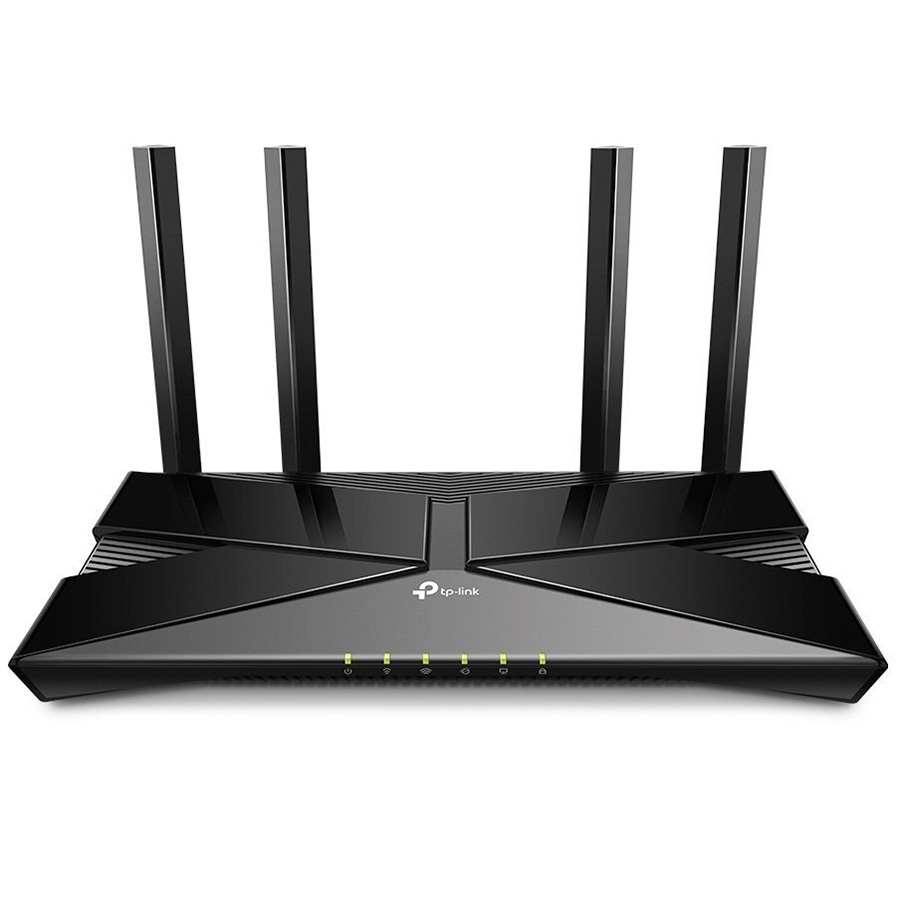
You can find more router options in our store catalog.
Step 2: Physical Router Connection
After choosing a router, it's time to connect it. This process is simple and doesn't require special skills:
- Unpack the equipment: check the contents — router, power adapter, network cable (usually yellow or blue)
- Choose a location: place the router as close to the center of your home as possible, at a height of 1-1.5 meters from the floor, away from metal objects and microwaves
- Connect the internet cable: insert the cable from your ISP into the WAN port (usually marked in blue or labeled Internet)
- Connect the power: plug the adapter into an outlet and connect it to the router
- Wait for boot-up: this usually takes 1-2 minutes, the indicators on the router will start lighting up
If you plan to connect a computer or gaming console via cable, connect them to the router's LAN ports using a network cable. For wired connections, you may need additional network cables of appropriate length.
Step 3: First Connection to the Router
Now you need to connect to the router for configuration. There are two methods:
Via Wi-Fi (recommended for beginners)
On your smartphone, tablet, or laptop, find the list of available Wi-Fi networks. Among them will be a network with a name containing the router manufacturer's name (for example, Cudy_XXXX or TP-Link_XXXX). Connect to it using the password that is usually printed on a sticker on the bottom of the router.
Via Wired Connection
Connect your computer to one of the router's LAN ports using a network cable. This method is more reliable but less convenient.
Step 4: Accessing the Router's Web Interface
After connecting to the router, open a web browser (Chrome, Firefox, Safari — any will do) and enter the router's IP address in the address bar. Most commonly it's:
- 192.168.1.1
- 192.168.0.1
- tplinkwifi.net (for TP-Link)
The exact address can be found on the router's sticker or in the manual. You'll be asked to enter a username and password. Standard credentials are usually:
- Username: admin
- Password: admin or blank field
Many modern routers will prompt you to create a new administrator password on first login — be sure to do this for security.
Step 5: Basic Internet Connection Setup
Most routers have a Quick Setup Wizard that will guide you through the basic steps:
- Select connection type: most commonly it's PPPoE (requires username and password from ISP), dynamic IP (DHCP), or static IP. If you don't know — contact your ISP's technical support
- Enter ISP credentials: for PPPoE, this is the username and password you received when connecting to the internet
- Configure network name (SSID): create a clear name for your Wi-Fi network
- Set Wi-Fi password: create a strong password at least 8 characters long, containing letters, numbers, and special characters
- Save settings: the router will reboot, after which you can connect to the network with the new parameters
Step 6: Optimizing Settings for Maximum Speed
Basic setup is complete, but there are several additional steps to improve performance:
Choosing the Optimal Channel
In the 2.4 GHz band, channels 1 through 13 are available. Neighboring routers can create interference if they operate on the same channel. Use the automatic channel selection feature or mobile apps (WiFi Analyzer for Android) to identify the least congested channel.
Channel Width Configuration
For the 2.4 GHz band, a channel width of 20 MHz is recommended (better stability at distance). For 5 GHz, you can use 40 MHz or 80 MHz for higher speed.
Enabling QoS (Quality of Service)
If there are many devices on the network, the QoS feature will allow you to prioritize traffic. For example, you can give preference to video calls or online gaming over file downloads.
Firmware Updates
Regularly check for firmware updates in the System Tools or Administration section. Updates improve security and performance.
Step 7: Extending Coverage Area
If your home has dead zones without signal, consider these options:
- Wi-Fi Extenders: affordable devices that amplify the signal. Check out Wi-Fi extenders in our catalog
- MESH Systems: multiple routers work as a single network, providing seamless coverage
- Wired Connection: for stationary devices (computer, Smart TV), it's better to use a network cable
Home Network Security
Protecting your Wi-Fi network is critically important in 2026:
- Change the default administrator password of the router
- Use WPA3 encryption or at least WPA2-PSK (AES)
- Disable WPS — this feature is convenient but has vulnerabilities
- Hide SSID (network name) if you want additional privacy
- Enable the router's firewall
- Disable remote management if not needed
Troubleshooting Common Problems
Slow Internet Speed
Check the speed directly on the router (via wired connection). If the speed matches your plan, the problem is with Wi-Fi coverage. Try changing the channel or relocating the router.
Constant Connection Drops
This may be caused by router overheating, interference from other devices, or outdated firmware. Make sure the router has adequate ventilation.
Devices Won't Connect
Check that the password is correct, ensure that the limit of connected devices hasn't been reached (some budget models limit the number of clients).
Practical Summary
Setting up a home Wi-Fi network in 2026 is an accessible task even for beginners. The key is to follow the sequence of steps: properly choose a router according to your needs, correctly connect it, perform basic configuration through the web interface, and apply optimization recommendations.
If you're looking for a reliable home router, pay attention to models with dual-band support, sufficient number of antennas, and gigabit ports. For small spaces, compact AC1200 standard models are suitable, while for large houses or offices, it's better to choose modern Wi-Fi 6 routers with MESH support.
Don't forget about security: change default passwords, use modern encryption, and regularly update firmware. If you have coverage issues, consider using extenders or switching to a MESH system.
With a properly configured network, you'll be able to enjoy stable internet in all corners of your home, work online comfortably, watch high-quality video, and game without lag. Happy configuring!
Products related to this post


₴79 грн.
Add to Cart