




The speed on your plan and the speed on your phone almost never match, but a gap of half or more almost always has a specific cause. Most often it is not "bad internet" but a bottleneck at one point in the chain: a port, a cable, a band, a wall or the device itself. Below is the order of checks we recommend to customers in chat, from the simplest to the most expensive.
First, check whether the problem is Wi-Fi at all
Connect a laptop to the router with a cable and run a speed test. If the wired result is 90-95% of your plan, the ISP and the router are fine, and the losses happen over the air. If you don't get your plan speed over the cable either, look further up the chain: the cable from the ISP, the WAN settings, or the provider's side.
Run the test next to the router, in the same room, with the VPN off and downloads closed. A single test proves nothing: run three in a row at different times. In the evening, when the whole building is streaming video, the numbers are lower, and that is normal for many ISPs.
The 100 Mbps port: the sneakiest cause
This is what we catch customers on most often. An old router with 10/100 ports can't be pushed past its limit: if your plan is 300 Mbps, it simply won't fit through a 100 Mbps WAN port. The test will show a steady "ceiling" around 90-95 Mbps, regardless of the room or the time of day.
The same goes for the cable. A gigabit line needs twisted pair that uses all four pairs of conductors. An old or self-crimped patch cord with two pairs only works at 100 Mbps. The check is simple: look in the router settings at the port's negotiated speed (1000 or 100 Mbps) and replace the cable with a factory-made one.
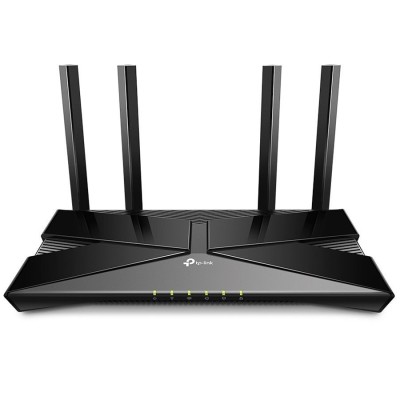
Modern models with gigabit ports don't have this problem. For example, the TP-Link Archer AX53 has one WAN port and four LAN ports, all 10/100/1000, so the wired side won't be a limit on a gigabit plan. Price guide at the time of publication: about 3700 UAH.
2.4 GHz or 5 GHz: why your phone is "sitting" on the wrong one
The 2.4 GHz band passes through walls better, but it is narrow, and the airwaves in an apartment building are crowded with neighbors' networks, microwave ovens and Bluetooth. In practice, real speed on it often doesn't exceed a few tens of Mbps. 5 GHz is faster and cleaner, but handles concrete and load-bearing walls worse.
A typical mistake: you created one network with a single name for both bands, and a phone at the edge of coverage latches onto 2.4 GHz because the signal there is "stronger". It helps to split the names (for example, "Home" and "Home_5G") and manually connect fast devices to the 5 GHz one. If the router supports both bands, like the AX53 (2.4 and 5 GHz), this takes a minute in the settings.
Channel width is also worth a look. On 5 GHz, an 80 MHz channel gives more speed, but in dense housing 40 MHz is more stable. On 2.4 GHz, keep it at 20 MHz: wider channels there only add interference.
Walls, distance and where the router sits
A reinforced concrete load-bearing wall "eats" a large part of a 5 GHz signal, and so do a mirror, an aquarium and a metal door. A router in the hallway by the front door or in a cabinet with the electrical panel almost guarantees weak coverage in the far room. The best spot is closer to the middle of the home, higher off the floor, away from the microwave and large metal objects.
A rough rule of thumb: if there are two structural walls between you and the router, expect 5 GHz speed to drop several times compared with line of sight. That is not a defect, it is physics.
An old device drags the network down
Every client connects at the speed its Wi-Fi module supports. An old smartphone or laptop with a single antenna stream on 2.4 GHz physically won't deliver more than 70-150 Mbps, even right next to the router. That is not the router's fault, and it is easy to check: compare the speed on two different devices at the same spot.
Another problem: very old devices that work on outdated standards force the router to spend airtime on slow transmission, and that affects the others. On some models, turning off support for the oldest modes in the settings helps.
Comparison of typical bottlenecks
| Cause | How it shows up | How to check | Fix |
|---|---|---|---|
| 10/100 port | Ceiling around 90-95 Mbps everywhere | Wired test next to the router | Router with gigabit ports |
| Two-pair cable | Negotiated at 100 Mbps | Port status in the settings | Factory-made patch cord |
| Client on 2.4 GHz | Good near the router, poor farther away | Network name in the phone's settings | Split the bands |
| Walls | Sharp drop in far rooms | Test in different rooms | Move the router or add an access point |
| Old device | Only one device is slow | Compare two devices | Replace it or connect it by cable |
When you need a second access point, not a new router
If the speed is good near the router but halves in the far room, the problem is coverage, not power. A second access point connected to the router by cable, or a mesh system, helps then. Routers with MESH support, like the same AX53, can be combined into one network with compatible devices: check compatibility on the product page or with a consultant. For extending coverage without running a cable there are Wi-Fi repeaters, but they split the airtime in half and usually cut the speed in the far zone roughly in two.
When running a cable is impossible, consider Powerline equipment: it carries the internet over the electrical wiring. However, quality depends heavily on the condition of the wiring, and in old buildings the result is unpredictable.
When you don't need a new router
If the wired test also shows half of your plan, changing the router is pointless: the problem is upstream of it. Likewise, if the speed drops only in the evening, in all rooms and on all devices, the ISP's overloaded network may be to blame. Only a conversation with support, armed with your wired test results, will help here.
Another case: a 100 Mbps plan, and an old router that still has gigabit ports and decent 5 GHz. Then you are already getting about 90 Mbps, and an expensive Wi-Fi 6 won't add speed, it will only behave better with many devices.
Frequently asked questions
Why does the test show different numbers in the morning and in the evening?
The airwaves and the ISP's network are loaded differently. For a clean conclusion, compare wired tests at different times: if they "float" just the same, the question is for the ISP.
Do I need Wi-Fi 6 if my plan is 100 Mbps?
For the speed of a single device, not necessarily. It is useful when many clients are on the network at once, because it distributes airtime better.
Will replacing the antennas with more powerful ones help?
On routers with non-removable antennas, like the AX53, that is not possible. What improves things is placement and a second access point, not "boosting" the antenna.
Does a VPN affect speed?
Yes, and often significantly, especially on a weak router processor. Turn the VPN off before testing, and check VPN support on the router in the model's specifications.
Before buying anything new, run a wired test next to the router. If it shows full speed and the speed drops farther away, solve the placement problem or add a second access point. If the wired result is also half, money spent on Wi-Fi 6 won't change anything.


Comments