



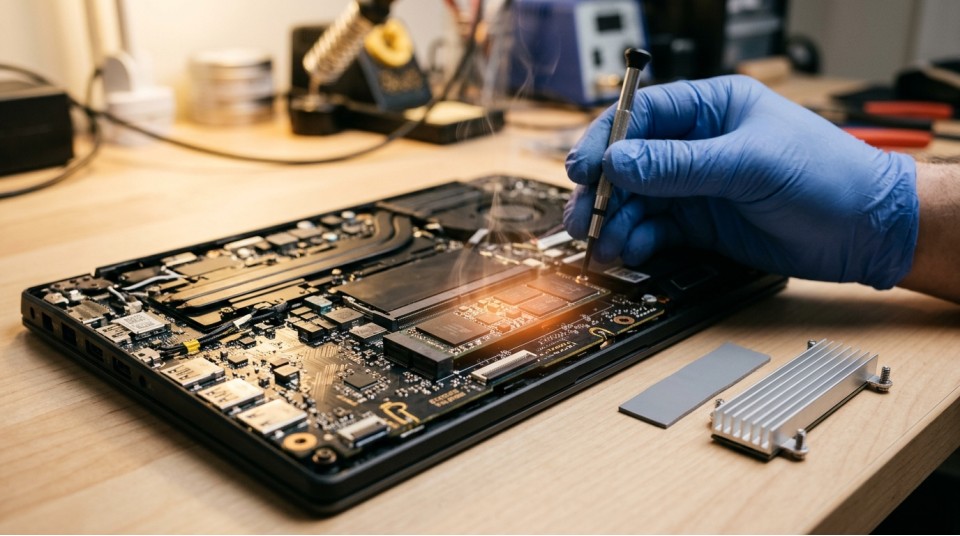
If the SSD in your laptop has suddenly become slow and hot, in most cases it comes down to one of five causes: thermal throttling, an overfilled drive, a power-saving mode, the wrong interface or connection mode, or physical wear. The drive itself, as a rule, is fine. Below is what we check ourselves when a customer writes in the chat: "I bought an SSD and it's slower than my old one."
How to tell real slowdown from normal behavior
First, work out what exactly is bothering you. A fast NVMe drive can show several GB/s at the start of a copy and then drop. That's normal: the drive writes into a fast cache first, and when the cache runs out, the speed falls to the level of the "raw" memory. On budget models the drop can be noticeable; on expensive ones it's less sharp.
What is not normal is when the laptop freezes during ordinary work, takes several minutes to boot, and copies a 1-2 GB file more slowly than a hard drive would. That's when you should go through the list below and look for the cause.
Cause 1. Thermal throttling: the drive cuts its speed so it doesn't burn out
An M.2 NVMe drive easily heats up to 70-80 °C under load. Most controllers start forcibly reducing speed somewhere around 70-75 °C, and cut it even harder as the temperature keeps rising. The user sees this as "the drive flew at first, and a minute later it crawls."
In laptops the situation is worse than in a desktop PC: the M.2 slot sits next to the processor and the graphics chip, airflow is weak, and there is often no room for a heatsink. In summer, in a hot room, or when the laptop is used on a bed or on your knees, the drive temperature naturally goes up.
What to check: copy a large file (20-30 GB) and watch the temperature at the same time in CrystalDiskInfo, HWiNFO or the SMART data. If the speed drops exactly when the temperature goes past 70 °C, that's throttling. Put the laptop on a hard, flat surface, clean the vents of dust and repeat the test. Sometimes that is enough for the speed to stabilize.
A thin copper or graphite sticker heatsink on the SSD helps, but only if there is a gap under the cover: a heatsink that is too thick simply won't fit, and in a slot with a retaining bracket it will also disturb the mounting. Measure the gap before you buy.
Cause 2. The drive is filled to the brim
This is the most common cause in the requests we get. An SSD with less than 10-15% of its capacity free writes more slowly: the controller has nowhere to place data and level the wear, and in many models the dynamic SLC cache is proportional to the free space. The less free space, the smaller the cache and the sooner the speed drops.
On top of that, temporary files, the swap file, hibernation, the browser cache and Windows update backups keep growing. A 256 GB drive with the system installed, games and a "Downloads" folder fills up much faster than it seems.
What to do: keep at least a tenth of the capacity free, and preferably a fifth. Clear the temporary files and move archives and videos to external storage. If you constantly run out of space, it makes more sense to buy a larger drive than to clean the old one every day. The SSD drives catalog has various capacities; for a laptop's main drive people usually take 512 GB or more.
Cause 3. Power mode and energy saving
A laptop on battery and a laptop on mains power behave differently. In power-saving mode the system limits processor performance and puts the NVMe drive into deep sleep states (APST, PCIe ASPM). Waking from such a state takes time, so the system feels sluggish and the data transfer speed doesn't reach the rated figure.
This is especially noticeable in Ukraine during power outages: the laptop runs on its battery, the mode automatically switches to "power saver," and the user thinks the drive has broken. In fact the drive is fine, the system is just holding it back.
What to check: plug in the charger, choose the "High performance" or "Balanced" mode in the power settings and repeat the speed test. If the result improves sharply, the problem is in the settings, not in the hardware. The power adapter must also be the original or one with a compatible rating: a weak adapter forces the laptop to limit its power under load. For replacement there are laptop power adapters, but choose them strictly by the voltage and current printed on the old adapter.
Cause 4. The drive works in the wrong mode: SATA instead of NVMe or PCIe x2 instead of x4
This is a typical mistake when replacing a drive yourself. An M.2 slot in a laptop may support only SATA, only NVMe, or both protocols. An M.2 SATA drive will run at about 500-550 MB/s, while an NVMe PCIe 3.0 x4 drive gives several GB/s at best. If you bought an NVMe drive and put it in a slot that supports only SATA, the drive either isn't detected or runs slowly.
Another pitfall: some laptops give the slot only two PCIe lanes instead of four, so the expected 3000 MB/s turns into 1500-1700 MB/s. That is not a defect of the drive but a limitation of the board. The same goes for PCIe generations: a 4.0 drive in a 3.0 slot will run at 3.0 speed.
What to check: before buying, open the laptop model's specification or ask a consultant which protocol and which PCIe generation the slot supports, and what the form factor is (2280, 2242). In the system, look at how the drive is connected in HWiNFO or in Device Manager. Also check that the BIOS has AHCI mode enabled, not the outdated IDE. This is especially relevant when the drive was cloned from an old HDD.
Cause 5. Cell wear and firmware problems
Flash memory has a limited rewrite endurance, measured in TBW (terabytes written). For a consumer 512 GB drive this is usually a few hundred TB, and with ordinary use that lasts for years. Problems appear when a drive is used for constant writing for a long time: torrents, video editing, virtual machines, frequent full rewrites.
Signs of wear: the percentage of used life grows in the SMART data, reallocated sectors or media errors appear, and the system sometimes freezes during writes. Cheap drives without their own DRAM cache (DRAM-less) also handle small random operations more slowly, so the laptop noticeably "thinks" when multitasking.
What to check: read the SMART data in CrystalDiskInfo. Look at the Health Status, the used life and the total data written counter. Update the drive firmware following the manufacturer's recommendation: sometimes it fixes abnormal heating or speed drops. If the condition is critical, make a backup immediately.
Quick table: symptom and likely cause
| What you see | Likely cause | First check |
|---|---|---|
| Speed drops after 30-60 s of copying, the drive is hot | Thermal throttling or cache exhausted | Temperature in HWiNFO, cleaning the vents |
| Everything is slow right away, less than 10% free space | Overfilled drive | Free up 15-20% of capacity |
| Slows down only on battery | Power-saving mode | Plug in the charger, change the power plan |
| Speed is consistently several times lower than rated | SATA slot or PCIe x2, lower generation | Laptop specification, checking the mode |
| Freezes, errors, growing SMART counters | Cell wear, controller problems | SMART, backup, firmware update |
When you shouldn't replace the drive
If the system freezes while the drive temperature is normal (up to 50-60 °C at idle), there is plenty of free space and the SMART data is clean, the cause is not the SSD. The usual culprits: not enough RAM (the system leans heavily on the swap file and loads the drive), background processes, an antivirus scanning the drive, or an overheating processor. Buying a faster drive in that case is pointless: you will spend several hundred hryvnias and the laptop will be just as slow.
An expensive PCIe 4.0 drive won't help either in a laptop whose slot runs at 3.0: you would pay for speed the board will not deliver. For an old laptop with a SATA slot, it makes more sense to take an ordinary SATA SSD.
What to do about heat dissipation in general
Besides cleaning and a heatsink, there are a few simple things. Don't put the laptop on soft surfaces that cover the vents. For work at a desk a laptop stand is useful: it raises the body and improves airflow. In a damp room (bathroom, basement, a dacha in winter) condensation harms all electronics, so if a laptop has been lying in the cold for a long time, don't switch it on right away; let it warm up to room temperature.
For storing equipment in cabinets and storerooms where it can get damp, something like a hanging moisture absorber for about 80 UAH helps: it won't cure the drive, but it lowers the humidity around equipment that sits unused for a long time. Go by the saturation indicator given in the specifications and replace the absorber when it fills up.
Frequently asked questions
Is it normal for an SSD to heat up to 60-70 °C?
Under load this is typical for NVMe, especially in a laptop. At idle the temperature should be noticeably lower. If the drive consistently stays above 70 °C even when it isn't doing anything, look for a cooling problem in the chassis.
Will defragmentation help?
No, an SSD doesn't need it, and it only uses up the drive's endurance. Modern Windows runs the TRIM command by itself, which is the correct one for solid-state drives.
Can I put an NVMe drive in an old laptop in place of a SATA SSD?
Only if the slot supports NVMe. You can't always tell by looking, because the connector keys are similar. Before buying, check the laptop model against its specification or ask a consultant.
How long does an SSD last in a laptop?
In ordinary home and office use, as a rule, for years, often longer than the laptop itself. The manufacturer states the endurance in TBW on the model page. For constant heavy writing, choose a drive with a reserve of endurance.
Before you order a new drive, do three things: check the temperature under load, the free space and the SMART data. If they are all normal and everything is slow, the cause is most likely the RAM or the processor, and replacing the SSD would be money thrown away.


Comments